





.webp)
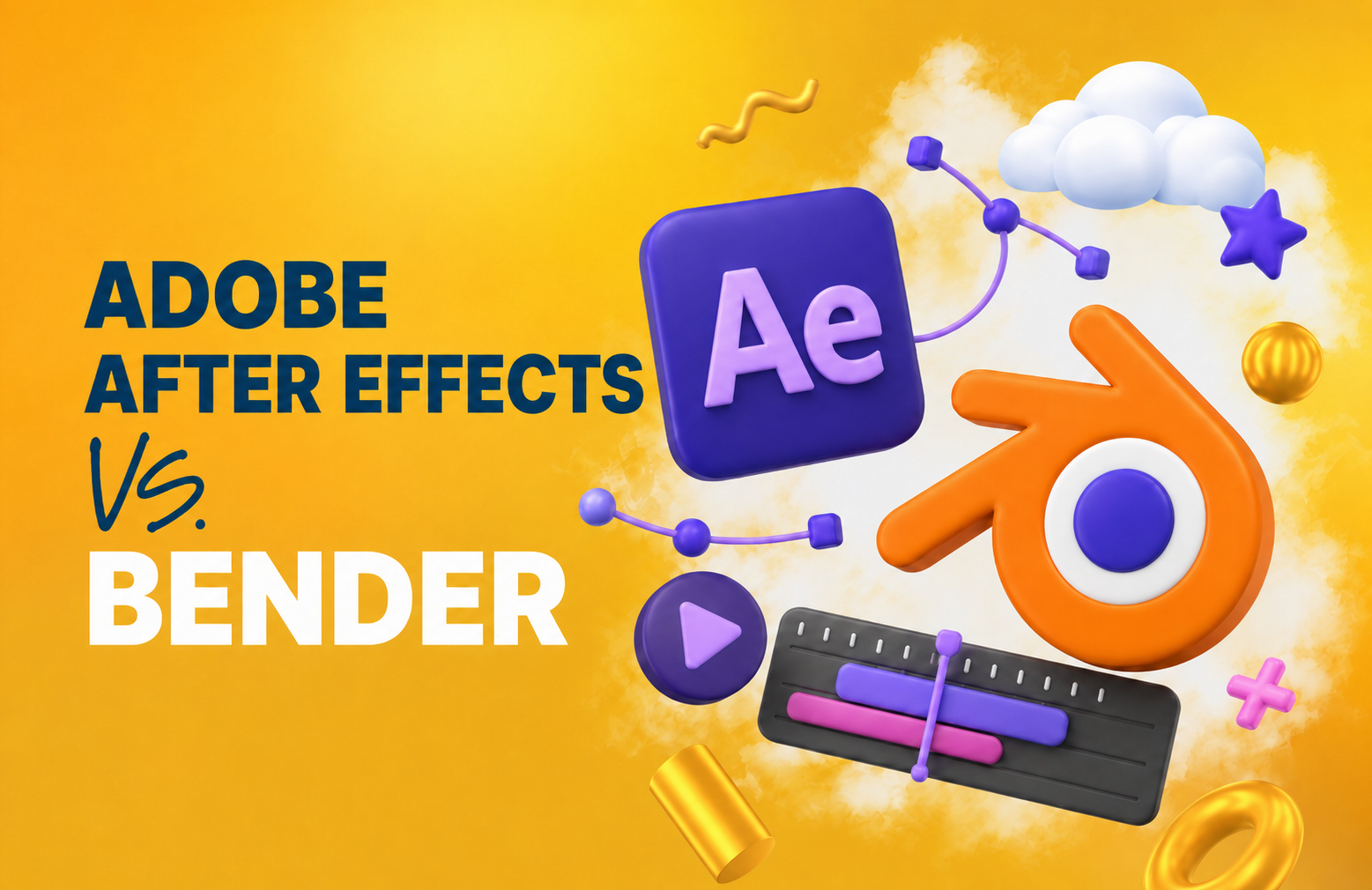
Motion graphics are everywhere now, from scroll-stopping social ads to slick explainers and cinematic title sequences.
So, naturally, one question keeps popping up: After Effects vs. Blender, which tool should you actually use?
Both are powerhouse platforms, but they play very different roles. After Effects is the motion designer’s favorite for 2D animation, kinetic typography, compositing, and polished brand content.
Blender brings the 3D muscle with modeling, character animation, rendering, and VFX.
This guide breaks down where each tool shines, how they compare, and when using both might be the smartest move.
After Effects vs. Blender: 5 Questions to Help You Choose
Before choosing in the After Effects vs. Blender debate, start with your workflow, project type, and final output.
The “best” tool depends on what you need it to do:
- What type of projects? Animating logos and UI elements points to After Effects. Building 3D environments points to Blender.
- 2D, 3D, or both? After Effects is the 2D standard. Blender is built for 3D. Many motion graphics designers use both in tandem.
- Experience level? After Effects is gentler if you're in the Adobe ecosystem. Blender is more complex but far more powerful in 3D.
- Budget? Blender is free. After Effects requires a Creative Cloud subscription (~$54.99/month for the single app).
- Solo or team? After Effects integrates seamlessly with Adobe pipelines. Blender is ideal for solo creators or dedicated 3D teams.
Adobe After Effects 26: The 2D Motion Graphics Powerhouse
.png)
Adobe After Effects was originally developed in 1993 by the Company of Science and Art in Providence (CoSA).
Adobe acquired it just a year later and has been the industry standard for 2D motion graphics ever since.
And, honestly, that’s no surprise!
After Effects (AE) is a very powerful and versatile tool with plenty of features that make it ideal for creating everything from social media animations to Hollywood-quality visual effects.
Let’s take a closer look at what it can do.
What After Effects Does Best
After Effects is best when your motion graphics project needs:
- 2D animation and motion design. After Effects is perfect for 2D animation projects like animated logos, explainer videos, and title sequences.
- Kinetic typography and lower thirds. If you’re looking to spice up a video with animated text or clean, branded captions, then After Effects handles this easily.
- UI and app animations. Designers regularly use AE to bring interface elements to life for things like presentations or prototypes.
- Visual effects and compositing. AE is great for layering video, images, and effects to create clean and professional-looking scenes.
- Plugin support and integration. AE’s plugin ecosystem is massive—whether you want to speed up your workflow, add particle effects, or create transitions, there’s likely a plugin for it. And because it’s part of Adobe Creative Cloud, it’s easy to pair it with Photoshop, Illustrator, and Premiere Pro.
What to Watch Out For
If you’ve already used After Effects for motion design, you know how powerful of a tool it is.
But if you’re wondering whether it’s the right tool for what you need, here are some things to consider to help you avoid needless frustration down the line:
- It’s mostly 2D-focused. Yes, technically you can work in 3D using layers and plugins like Element 3D, but it’s not a true 3D animation tool. If your project requires modeling, rigging, or sculpting in a 3D space, you’ll find it difficult to work with.
- It can get resource-heavy. The more layers, effects, and keyframes you pile on, the more RAM you’ll need. Complex projects can slow down your device unless they’re properly optimized.
- Performance isn’t real-time. Unlike some newer motion tools, After Effects doesn’t offer real-time previews. Expect to do a fair bit of rendering to see your animations at full quality.
- It’s not beginner plug-and-play. While it’s easier to figure out than Blender for most designers, After Effects still takes time to learn—especially if you’re new to concepts like keyframing, easing, and timelines.
Key 2026 Updates
Per Adobe’s official release notes, the June 2026 After Effects 26 update added:
- Native parametric 3D meshes, including spheres, cubes, and cones, with no plugins needed
- Access to 1,300+ Substance 3D materials
- SVG import as editable shape layers
- Upgraded variable font typography through the Text Animator
- Lossless compressed playback for faster previews
- Native Windows ARM support
How to Get Started
Start a free 7-day trial at Adobe. Check out After Effects Tutorial: The Basics by Adobe, or After Effects Beginner Tutorial by Ben Marriott.
Want to see what After Effects is capable of? Check out this video!
Blender 5.1: The Free 3D Animation Powerhouse
.png)
Blender went open-source in 2002 and has since become one of the most capable 3D tools available — completely free.
The current stable release is Blender 5.1 (March 2026), with Blender 5.2 due in July 2026.
Since then, it’s become one of the best and most accessible 3D animation tools out there. While still being completely free!
Blender is used by everyone from hobbyists to independent artists, game studios, and even film production teams for its 3D tools for modeling, sculpting, animation, lighting, rendering, and more.
Let’s take a closer look at what it can do:
What Blender Does Best
Blender is best when your motion graphics project needs:
- 3D animation and modeling. Creating characters, building a product mockup, designing a virtual environment; Whatever the goal, Blender has the tools to bring it to life in full 3D.
- Rigging and character animation. Blender allows you to build complex rigs and animate characters with impressive control and precision.
- Lighting, shading, and rendering. Blender’s built-in render engines—Cycles and Eevee—let you create beautiful, photorealistic animations.
- Visual effects (VFX). Blender has a built-in camera tracking and compositor, making it a solid choice for adding CGI elements to live-action footage.
- Sculpting and simulation. Blender includes sculpting tools for organic models and simulation options for cloth, smoke, fire, and water. Perfect for adding lifelike movement and effects to your scenes.
- Open source and community-powered. Blender is completely free and constantly evolving, thanks to a massive global community of developers and artists.
What to Watch Out For
Blender is a great tool, but it’s not the most beginner-friendly tool out there, especially if you’re used to working with 2D animation.
Here are a few things to keep in mind before getting started:
- It has a steep learning curve. Blender’s interface and toolset can feel overwhelming at first, especially if you’re new to 3D. There’s a lot packed into one program, and it takes time to get comfortable.
- It’s built for 3D, not traditional motion graphics. While you can create motion graphics in Blender, it’s not designed with typical 2D workflows in mind. You won’t find native tools for things like lower thirds or kinetic typography without some creative workarounds.
- Fewer drag-and-drop options. Compared to After Effects (and its plugin-heavy ecosystem), Blender often requires more manual setup for effects and transitions.
- Exporting can be complex. If you’re planning to use Blender animations in larger video projects, you may need to export in specific formats or use third-party tools for post-production.
Key 2026 Updates
Per Blender’s official release notes, the June 2026 Blender 5.1 update added:
- Full Vulkan support, with faster startup and Eevee shader compilation
- Continued Eevee Next improvements, including better planar reflections
- Enhanced Grease Pencil fill workflows
- A growing Extensions Platform with community stock assets like materials
Want to see what Blender is capable of? Check out this video!
How to Get Started
Download it for free and then try the Blender Beginner Tutorial Series by Blender Guru or Your First Day Learning Blender by Ducky 3D on YouTube.
After Effects vs. Blender: A Side-by-Side Comparison
Still not sure which tool is right for you?
Here’s a quick side-by-side breakdown to help you compare:
After Effects vs. Blender: Which Tool Is Right for You?
The best choice depends on what you’re making, how your team works, and whether your project needs 2D polish, 3D depth, or both:
- Choose After Effects if you’re creating 2D motion graphics, social media animations, explainer videos, UI animations, kinetic typography, or compositing work. It’s especially useful if your team already works inside the Adobe ecosystem.
- Choose Blender if your project needs 3D environments, character animation, product visualizations, simulations, cinematic sequences, or more advanced visual effects. And if budget is a factor, free is a pretty persuasive feature.
- Use both if your workflow calls for 3D assets and polished final compositing. Many professional motion graphics designers build objects, environments, or animations in Blender, then bring them into After Effects for compositing, text animation, effects, and final output.
{{drowning-in-projects-an}}
Blend, Bend, and Animate Your Skills with Designity
After Effects and Blender may do different things best, but the real magic happens when talented creatives know when to use each one.
After Effects gives you the control, polish, and precision to create standout 2D motion graphics, title sequences, visual effects, and animated brand assets.
Blender brings the depth, realism, and 3D power needed for modeling, animation, product visuals, and cinematic creative work.
Together, they give motion designers more ways to bring bold ideas to life.
But tools are only part of the story.
Your creative eye, timing, storytelling, design instincts, and ability to solve real client challenges are what turn good motion graphics into memorable work.
At Designity, you can put those skills to work on real-world projects for real-world brands, with the support of experienced Creative Directors and a creative community built to help you grow.
Ready to see where your motion graphics skills can take you?
Join Designity’s creative community today.
4 FAQs Related to After Effects vs. Bender
Here are the answers to a few questions about After Effects and Bender:
1. Do Professional Animators Use After Effects?
Yes, professional animators use After Effects, especially for motion graphics, kinetic typography, visual effects, and compositing.
In an After Effects vs. Blender workflow, After Effects is often used to polish, layer, and finalize animation assets, while Blender is used for 3D modeling, rendering, and character animation.
2. What Is a Good Replacement for Adobe After Effects?
A good Adobe After Effects replacement depends on what you need to create.
Blender is a strong free option for 3D animation, VFX, modeling, and rendering, while tools like DaVinci Resolve/Fusion, Cavalry, Rive, or Synfig may work better for compositing, 2D motion, or vector-based animation.
In the After Effects vs. Blender comparison, Blender is the stronger 3D alternative, but it is not a direct replacement for After Effects’ 2D motion graphics workflow.
3. Which Is Better, After Effects or Blender?
Neither tool is better for every project.
In the After Effects vs. Blender debate, After Effects is better for 2D motion graphics, compositing, title sequences, lower thirds, UI animations, and social video content.
Blender is better for 3D modeling, character animation, product visualization, simulations, and cinematic VFX.
Many motion graphics designers use both because they solve different parts of the creative pipeline.
4. Is It Worth It to Learn Blender in 2026?
Yes, Blender is worth learning in 2026, especially if you want to build 3D skills without paying for expensive software.
It covers modeling, sculpting, rigging, animation, rendering, simulation, and compositing in one free, open-source platform.
For motion designers, learning Blender also makes the After Effects vs. Blender choice less limiting, since you can create 3D assets in Blender and finish them in After Effects.




.png)